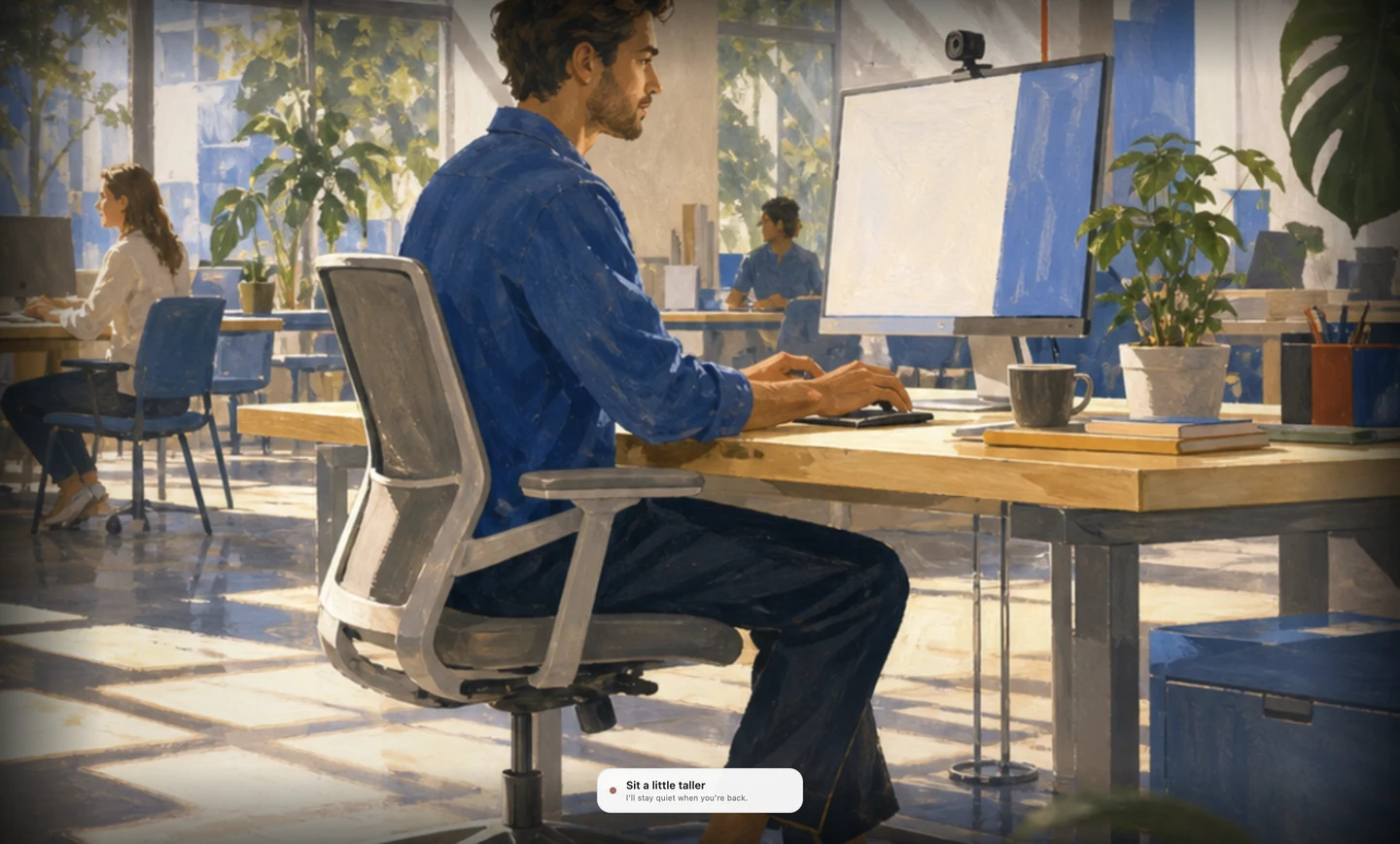
Set movement breaks for roughly once an hour. Set posture correction to respond after you have remained slouched for 20 to 60 seconds. A repeating 30-minute “sit up” alert mixes those jobs together and becomes easy to dismiss.
The short answer
Use one schedule for movement breaks and another trigger for slouching
Step away from continuous screen work for 5 to 10 minutes, or change to a non-screen task that lets you move and vary your position.
Use a posture-aware cue when a slouch or looking-down position lasts. Start near 30 seconds, then tune the delay from how often you recover or dismiss it.
The movement-break range comes from workplace display-screen guidance, not a rule about holding your shoulders in one position. The UK Health and Safety Executive says short, frequent breaks are preferable to occasional long breaks and gives 5 to 10 minutes after 50 to 60 minutes of continuous screen work as an example. NIOSH has also reported lower discomfort and eyestrain when conventional breaks were supplemented with hourly 5-minute breaks.
The posture-correction range is a practical starting point. Research does not establish one ideal number of seconds for every person, task, camera angle, or reminder style. Keep the setting if the alert follows a recognisable slouch, gives you time to sit comfortably again, and does not become annoying by the afternoon.
Two clocks
Break timers measure work time; posture alerts measure body position
A scheduled break and a posture cue may appear on the same screen, but they should follow different logic. A break timer measures how long you have worked. It can remind you to stand, walk, stretch, look away, refill water, or switch tasks. It remains useful even if your sitting position has been comfortable.
A posture-aware reminder measures a change in position. It should stay quiet when you are already near the upright position you recorded, when you lean briefly to read something, or when you shift in your chair. It becomes relevant when that change persists long enough to show that you have settled into the new position.
Schedule breaks by elapsed work time. Trigger posture feedback only after you remain slouched. One repeating timer cannot perform both jobs accurately.
This distinction also changes what you do next. A break reminder asks you to stop or change activity. A posture cue asks for a small recovery: settle your shoulders, bring the work closer, return your head over your torso, or move into another comfortable position. The cue has done its job once you respond.
Starting settings
Start posture alerts after about 30 seconds of sustained slouching
Start posture-aware feedback after you have remained slouched for 30 seconds. That is long enough to ignore many brief reaches and shifts, yet short enough to catch the position before you spend a full work block there. Adjust it after testing.
| What happens in practice | Try this delay | What to watch |
|---|---|---|
| You drift quickly and notice too late | 15 to 25 seconds | False alerts during reading, reaching, or note-taking |
| You want a balanced starting point | About 30 seconds | Whether most cues lead to a comfortable reset |
| You move often or work deeply | 45 to 60 seconds | Whether drift lasts too long before the cue arrives |
| You dismiss several cues in a row | Add 10 to 15 seconds | Timing, false detection, meetings, and cue intensity |
| You always recover before the cue | Add 15 to 30 seconds | Whether you still need active coaching for that task |
A very short delay will alert during ordinary movement. A long delay leaves you in the position you wanted to change. Use a setting where you can usually tell why the alert appeared.
Cue strength matters too. A quiet notification can arrive sooner because it creates little disruption. A screen lock, darkened display, loud sound, or wearable vibration may need a longer threshold or an easy pause control. Compare those feedback styles in our guide to the best posture apps for Mac.
Match the work
Adjust the delay for reading, deep work, calls, and off-screen tasks
Change the delay for the task. A 20-second delay can work while reading documentation and interrupt a live presentation. A 60-second delay may suit writing and arrive too late when you keep leaning toward a low laptop screen.
Start with the 30-second baseline, then choose the nearest pattern below. If your day contains several patterns, use pause controls or save the setting that works for the longest, most posture-intensive block.
Use a longer, quieter delay
Try 45 to 60 seconds with a quiet visual cue. Pause sounds and aggressive overlays. Keep a separate movement break at the end of the focus block so the posture reminder does not carry the whole job.
Use a shorter delay and enlarge text
Try 20 to 30 seconds if you gradually move toward the screen. Before shortening the delay again, increase text size and bring the display closer. Fix the reason you are leaning instead of asking the app to remind you more often.
Pause reminders during calls
Use an automatic or manual pause. A cue that you cannot act on becomes noise, especially when it changes the screen or plays audio. Resume monitoring after the call instead of trying to design a perfect meeting alert.
Calibrate looking-down positions
Looking down can be part of the job. Use a tool that calibrates or recognises that position, then decide how long you want to remain there. A generic head-angle threshold may treat every notebook glance as a mistake.
Use an external camera, AirPods, or a wearable
A built-in camera cannot see you when the lid is closed. Use an external camera, compatible earbuds such as the approach covered in Plumb vs SitTall, or a body-worn sensor.
Use a wearable away from the computer
Desktop coaching stops when you leave the computer. A wearable can follow standing and moving work, although it adds charging and a device you must remember to wear. See Plumb vs UPRIGHT GO.
If you only have a recurring timer, use it as a body check rather than an order to sit rigidly. Start at 45 to 60 minutes, ask whether you need to move or change the setup, and step away from the screen when the movement-break clock arrives. A timer cannot know what happened between alerts, so its instruction should remain broad.
Alert fatigue
Too many reminders cause people to dismiss or disable them
Every alert interrupts you. If it appears during calls, brief reaches, and ordinary movement, you learn to dismiss it. After enough false alerts, most people disable the app.
Research on just-in-time adaptive interventions describes the same design problem: support should arrive when a person needs it and is receptive to it. Poorly timed support can increase burden and intervention fatigue. UK guidance on micro-randomised trials makes the trade-off explicit: prompts delivered too often can cause people to disengage, so effectiveness has to be balanced against user burden.
Posture feedback evidence also deserves restraint. A systematic review of workplace interventions found varied methods and results, while a randomised trial of auditory feedback for sustained forward bending found no reduction in threshold exceedances. A sensor can detect a position and still fail to change behaviour. Timing is one part of the system, alongside the action requested, the workstation, comfort, trust, and whether the user can pause feedback during real work.
You know why it appeared
The cue follows a position you recognise and asks for one clear response.
You dismiss without reading
Increase the delay, reduce intensity, or remove alerts during tasks where they cannot help.
You have already become stiff
Shorten the sustained-drift delay and check whether the workstation keeps pulling you forward.
It fires during normal movement
Recalibrate the baseline or use a tool that distinguishes movement from persistent drift.
A one-week tuning plan
Tune your reminder delay over one working week
Use a normal working week to tune the system. Avoid changing the delay, sound, sensitivity, desk setup, and break schedule at once. When every variable moves, you cannot tell which change improved the day.
- Days 1 and 2Start near 30 seconds. Notice which tasks produce cues and whether the trigger feels recognisable.
- Day 3Count three outcomes: recovered, dismissed, or false alert. A rough tally is enough.
- Day 4Change the delay by 10 to 15 seconds. Go longer for noise and shorter for late cues.
- Day 5Check the reset. Make it small, comfortable, and possible during the work you do.
- Days 6 and 7Keep the setting if most cues still lead to action. Reduce intensity or pause coaching if resentment is rising.
- End of weekKeep one movement-break schedule and one posture delay. Review again after your routine changes.
Count how many alerts are followed by sitting back up. A high alert count may only mean the app is noisy. The useful number is how often you responded.
Also watch recovery time. If you respond immediately, the cue probably arrived at a workable moment. If it remains visible while you finish a meeting or task, the app should have been paused for that task. Add a pause rule instead of making the cue louder.
How Plumb handles timing
Plumb waits for your posture to drift and stay there
During setup, you show Plumb an upright working position, your natural slump, and the looking-down position you use with a phone or work below the camera. During monitoring, it ignores brief movements and reacts only when the changed position lasts.
Onboarding sets the nudge delay from your reported desk hours: 20 seconds for under four hours, then 30, 40, or 50 seconds as desk time increases. You can adjust the setting from 5 to 120 seconds in 5-second steps. These are product defaults designed for tuning, not medical recommendations.
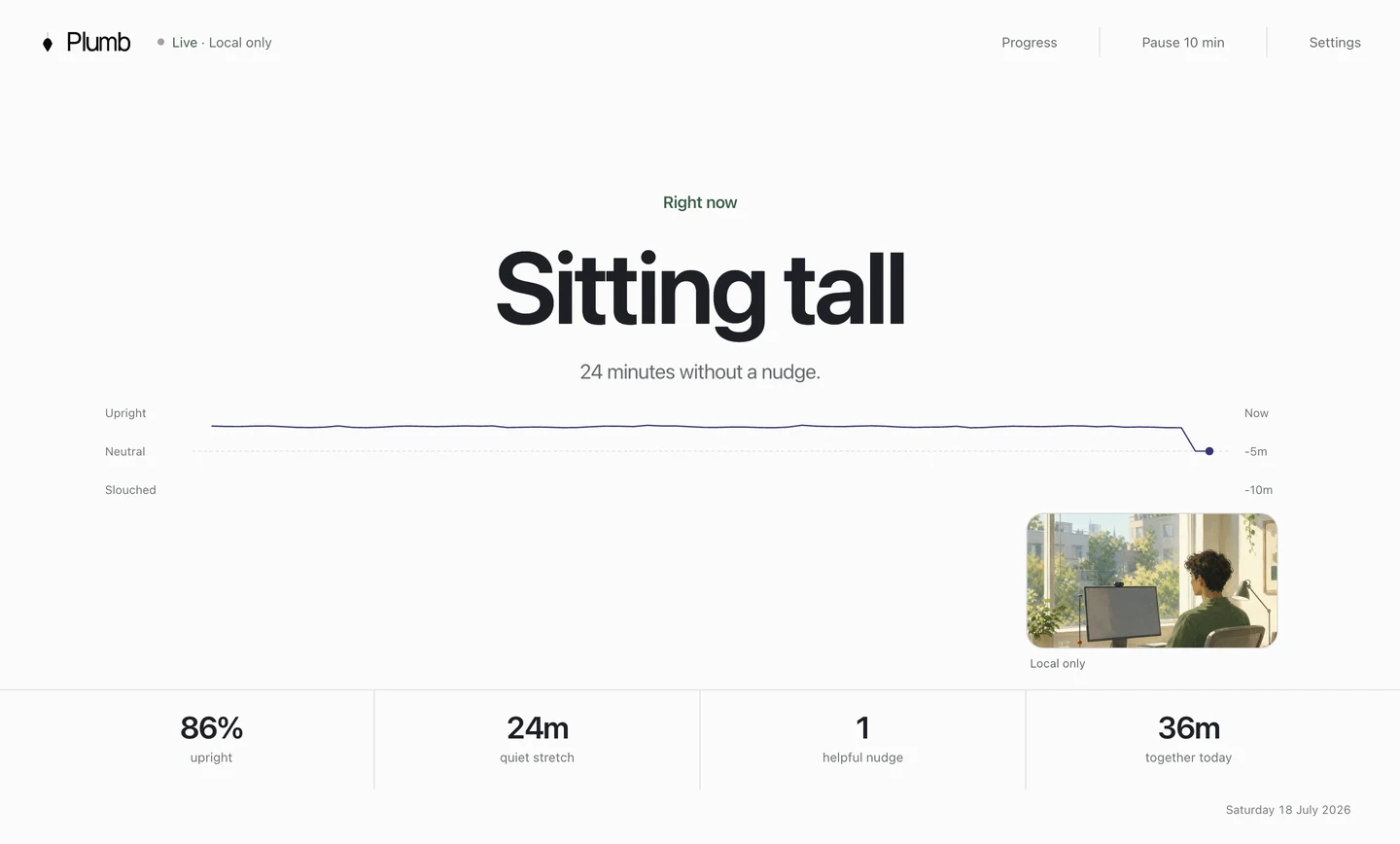
When you remain slouched, one quiet cue appears. It clears after you return toward the upright position you recorded and stay there briefly. Plumb stores posture time, alerts, recoveries, and recovery duration on your Mac.
Record upright, slouched, and looking-down positions with your normal camera setup.
The delay prevents a brief reach or shift from triggering a reminder.
The cue clears when you sit back up, and the app records the recovery on your Mac.
Prefer a firmer consequence? Read Plumb vs Slouch Sniper. Want a traditional timer and broader break system? Read Plumb vs LookAway. For another camera-based approach, see Plumb vs Posture Reminder AI.
When timing is not the problem
Fix a low screen, distant keyboard, or unsupported chair first
If every cue asks you to correct the same position, inspect what keeps recreating it. A low laptop screen invites your head forward. A keyboard placed too far away makes you reach. A chair without usable back support makes an upright baseline expensive to maintain. Small setup changes can remove the cause that reminders keep reporting.
HSE guidance places the top of the screen around eye level and about an arm’s length away, keeps the keyboard below elbow height, supports the lower back, and places the screen and keyboard centrally. For prolonged laptop use, it recommends separating the keyboard and mouse so the screen can be raised.
Raise the main content until you can read it without repeatedly leaning toward it.
Bring the keyboard and mouse close enough that your elbows can remain relaxed.
Use the back support and leave room behind the knees instead of perching at the edge.
Move notebooks, tablets, and secondary screens so looking down is deliberate rather than constant.
Keep ordinary movement. The goal is a workable range of positions and regular changes of activity, not a day spent bracing yourself into one pose. Our desk-slouching guide covers the reset routine and workspace changes in more detail.
Evidence behind the guidance
Evidence for movement breaks and posture-alert timing
Workplace guidance supports frequent changes of activity and short breaks from continuous screen work. Notification research supports adapting prompts to need, timing, receptivity, and burden. Posture-feedback studies remain mixed and do not establish one ideal reminder frequency.
That is why this guide gives a firm hourly starting point for screen breaks and a testable 20 to 60 second range for sustained-drift feedback. The first comes from occupational guidance. The second is a product and habit-tuning range that should be judged by false alerts, dismissals, comfort, and recovery.
- UK Health and Safety Executive: work routine and breaks
- NIOSH: working from home and supplementary hourly breaks
- Nahum-Shani et al.: just-in-time adaptive intervention design
- Office for Health Improvement and Disparities: micro-randomised trials
- Workplace interventions to improve sitting posture: systematic review
- ELF trial of a postural feedback device
Common questions
Posture reminder timing FAQ
How often should a posture reminder go off?
Use a different cadence for each job. For movement breaks, a useful starting point is 5 to 10 minutes away from continuous screen work every 50 to 60 minutes. For posture correction, use a posture-aware cue after roughly 20 to 60 seconds of sustained drift instead of another repeating timer.
Is every 30 minutes too often for a posture reminder?
A 30-minute timer can work as a brief body check, but it will also interrupt you when your posture is already comfortable or when you recently moved. If you regularly dismiss it, move the timer closer to 45 or 60 minutes, or use posture-aware feedback that only appears after sustained drift.
Should I sit perfectly upright all day?
No. A comfortable supported position is a useful baseline, but ordinary movement is expected. Reminders should help you leave a position that has become sustained or uncomfortable, not make you hold one rigid pose for hours.
Why do posture reminders stop working?
The usual causes are poor timing, repeated false alerts, vague instructions, or a workstation that keeps pulling you back into the same position. Track whether each cue leads to a reset. If it does not, change one part of the system instead of increasing the number of notifications.
Can posture reminders treat back or neck pain?
Posture reminders are awareness tools, not treatment. Adjusting your workstation, changing position, and taking regular movement breaks may make desk work more comfortable. Persistent pain, numbness, weakness, symptoms after an injury, or symptoms that are getting worse need advice from a qualified healthcare professional.