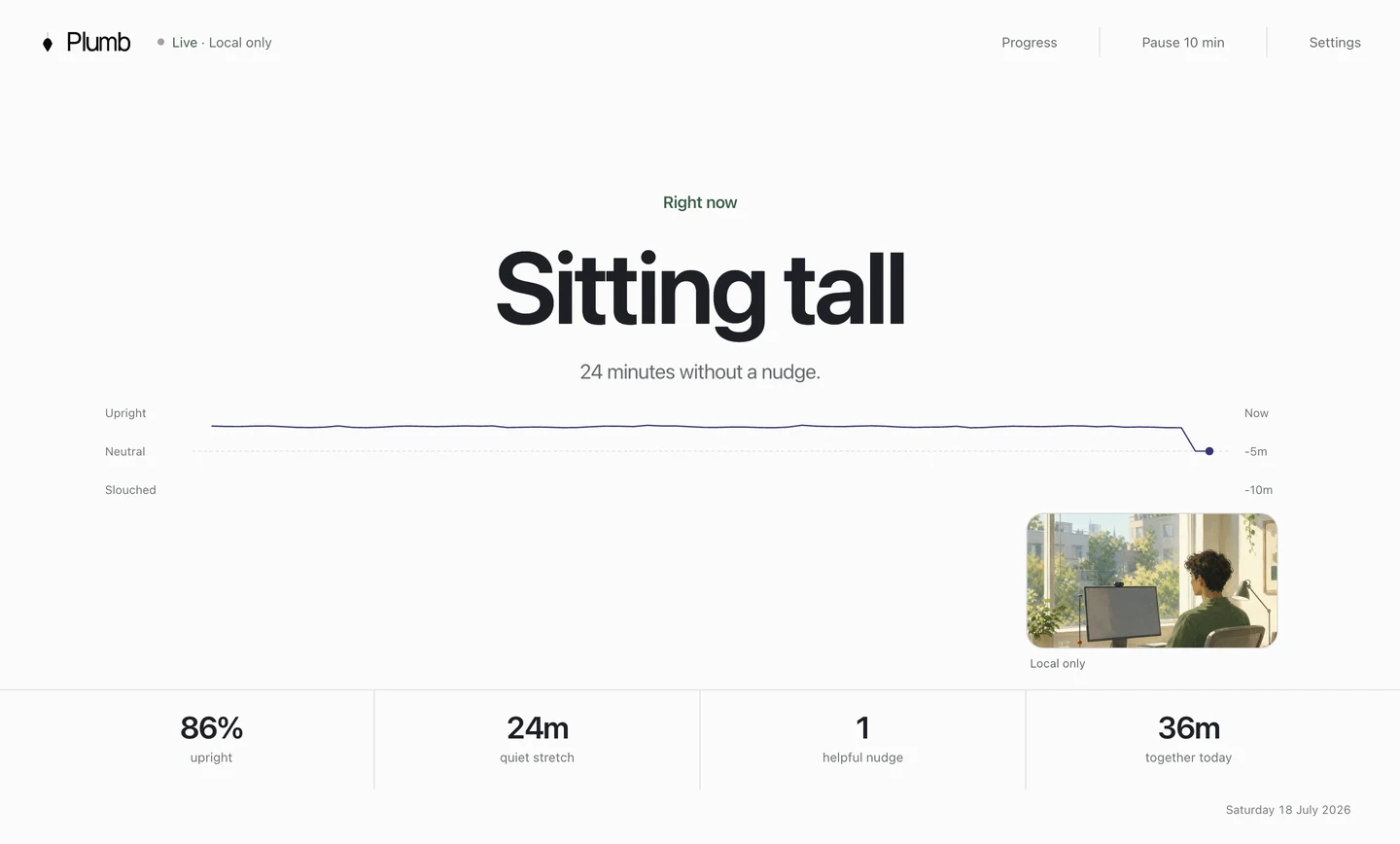
A webcam posture tracker turns each camera frame into estimated body landmarks, compares the current pattern with a baseline, waits to see whether the change lasts, and then decides whether to show feedback. Camera permission tells you the app can see the feed. It does not tell you where the processing happens or what data leaves the Mac.
The short answer
Webcam posture tracking uses body landmarks to estimate your position
A pose model estimates points such as your nose, ears, shoulders, elbows, and hips. The app measures the distances and angles between those points. It then compares the measurements with fixed rules, a general model, or examples you supplied during calibration.
The app also measures time. Leaning toward a document for two seconds should not trigger a warning. Holding the same changed position for 30 seconds may justify one. Calibration and alert timing affect accuracy as much as the pose model.
Check whether camera frames stay on your computer, whether the app sends posture measurements to a server, and where it stores your history. “Uses AI” does not answer any of those questions.
Under the hood
How a camera frame becomes a posture reminder
- 01
Capture a current frame
The app requests camera access and reads a frame while monitoring is active. Lighting, framing, camera height, and distance affect what follows.
- 02
Estimate body landmarks
A pose model finds likely coordinates for visible body points. Google’s MediaPipe Pose Landmarker, for example, returns pose landmarks from image or video input.
- 03
Measure the distances and angles
The app measures relationships such as how far the nose sits in front of the shoulders. Ratios help it compare frames when your distance from the camera changes slightly.
- 04
Compare with a reference
Some products use fixed rules. Others compare against a calibration you created. The second approach can learn that your comfortable baseline differs from someone else’s.
- 05
Wait before showing an alert
The app ignores frames where it cannot see you clearly and waits to check whether the changed position lasts. It can then show a notification, dim the screen, blur content, or play a sound.
Capabilities and limits
What webcam posture tracking can and cannot detect
With a useful upper-body view, a tracker can estimate whether your head has moved toward the screen, whether one shoulder sits differently from the other, whether your torso angle resembles a calibrated slump, or whether you have looked down for a while. It can also notice when you leave frame or the view becomes uncertain.
It cannot feel discomfort, know why you moved, inspect a chair hidden below the desk, diagnose an injury, or decide that one position is medically correct. A single camera can also lose depth and body context. Turning sideways, wearing loose clothing, covering landmarks, or moving an external camera can change the picture.
Visible head-and-shoulder drift, personal comparisons, sustained patterns, and desk context.
Hidden joints, discomfort, off-screen activity, clinical assessment, and ambiguous movement.
A stable useful view, honest calibration, reasonable timing, and recalibration after setup changes.
Camera privacy
Camera permission does not tell you where processing happens
On a Mac, you decide which installed apps may access the camera in System Settings under Privacy & Security, then Camera. Apple also uses a green indicator beside the camera when it is active. Those controls tell you when an app has access and let you revoke it.
The next step belongs to the product. A local app can run pose estimation, comparison, timing, and history on the Mac without uploading frames. Another product could send images, landmarks, scores, account events, or analytics to a server. A third could run the model locally while syncing a history to the cloud. All three still need camera access.
Frame → landmarks → classification → cue → local history
Nothing in the posture pipeline needs to leave the computer.Local detection → score or event → account or cloud history
The feed may stay local while derived information is transmitted.Frame or derived data → remote processing → result returned
Read the policy for storage, sharing, security, deletion, and third parties.The Federal Trade Commission advises people comparing health apps to inspect what information is collected, how it is used or shared, which controls exist, and whether the service is worth the privacy risk. Treat a clear policy as the beginning of the review, then compare it with visible controls and actual product behaviour.
Five privacy checks
Five privacy questions to ask before installing a posture app
Do camera frames leave the device?
Look for explicit language covering upload, recording, storage, screenshots, support attachments, and model training.
Do landmarks or posture scores leave?
“We never upload video” can still allow derived body data, classifications, history, or analytics to travel elsewhere.
What remains after monitoring stops?
Separate temporary frames from saved calibration, daily statistics, crash reports, licence records, and account data.
Can you pause, revoke, and delete?
Useful controls include a visible monitoring state, easy pause, camera choice, macOS permission guidance, and a way to remove local history.
Does the product still work offline?
Offline operation can support a local-processing claim. It does not prove every other service function is local, so read the complete boundary.
Plumb example
How Plumb detects posture changes on your Mac
Plumb runs Google MediaPipe’s pose landmark model inside the Mac app. It uses visible points around the head, shoulders, arms, and hips. During setup, you record several examples of sitting tall, your natural slump, and the looking-down position you use with a phone.
During monitoring, Plumb compares the current landmark distances and angles with your recorded examples. It ignores brief movements and frames where the camera cannot see you clearly. If you remain close to your slouched example for the delay you selected, a reminder appears at the edge of the screen. It clears after you sit back up.
Camera frames and posture data are processed on the Mac. Frames are discarded during use. Posture history remains local. Normal diagnostics exclude camera images and posture history; licensing, payments, downloads, updates, support, and optional diagnostics have separate limited data paths documented in the Plumb Privacy Policy.
The three examples show Plumb how you sit at your own desk. The separate looking-down example stops every glance at a phone or notebook from being treated as the same movement as your usual slump.
When it gets things wrong
How to fix common webcam posture tracking errors
| What you notice | Likely cause | Useful response |
|---|---|---|
| Alerts after moving the laptop | The camera angle no longer matches calibration | Recalibrate in the new setup |
| Brief reaches trigger feedback | The delay or sensitivity is too aggressive | Increase sustained-drift time |
| Slouching goes unnoticed | Poor light, missing landmarks, or weak examples | Improve the view and recapture honest poses |
| Calls create constant alerts | The task naturally changes your position | Pause monitoring or use a task-specific setting |
| The app keeps losing you | Your head or shoulders leave frame | Move the camera back or choose another camera |
A tracker should report uncertainty when it loses the body landmarks. It should provide clear pause and recalibration controls.
Buyer checklist
How to choose a webcam posture tracker
First decide what the app should track. A webcam can compare your head and shoulders. AirPods can measure head angle without a camera. A wearable can remind you away from the desk. A timer cannot detect posture, but it can still schedule movement breaks.
Then choose how you want to be reminded. A notification is easy to ignore. Dimming or blurring the screen forces you to respond. A game adds scores and rewards. The Mac posture app comparison groups fourteen tools by those real workday differences, while the reminder timing guide explains how sustained drift and recovery should control a cue.
Before installing, read the privacy policy and check whether frames, posture measurements, or history leave your computer. During the trial, test the pause button, camera selector, recalibration, and data deletion controls.
If the camera is only one part of the problem, start with the desk-slouching guide. It helps remove the screen, reach, support, and movement issues that software should never be asked to fight all day.
Common questions
Questions people ask before granting camera access
How does webcam posture tracking work?
A pose model converts a camera frame into body landmarks such as the nose, ears, shoulders, and hips. The app compares those landmarks with a baseline, watches whether a change persists, and then decides whether to show feedback.
Does a webcam posture app have to upload video?
No. Detection can run locally on the computer. Camera permission only allows an app to read the camera; the privacy policy and technical design determine whether frames, landmarks, scores, or events leave the device.
Can a posture app record me without the green camera light?
Apple says the green indicator appears when the Mac camera is active. You can review or revoke each installed app’s camera access in System Settings under Privacy & Security, then Camera.
What can webcam posture tracking get wrong?
Lighting, occlusion, a camera that sits too low or far to one side, changing desks, leaning briefly to read, and moving out of frame can all affect classification. A useful app exposes recalibration, pause controls, camera selection, and a delay before feedback.
What does Plumb keep after a monitoring session?
Plumb processes camera frames and posture data on the Mac. Frames are discarded during use. Local posture data can support progress views, while Plumb’s normal diagnostics exclude camera images and posture history. The privacy policy documents the separate licensing, payment, update, support, and optional diagnostic data.
References